
1. In your timesheet portal, select the Expenses tab.
2. Select Add Expense.
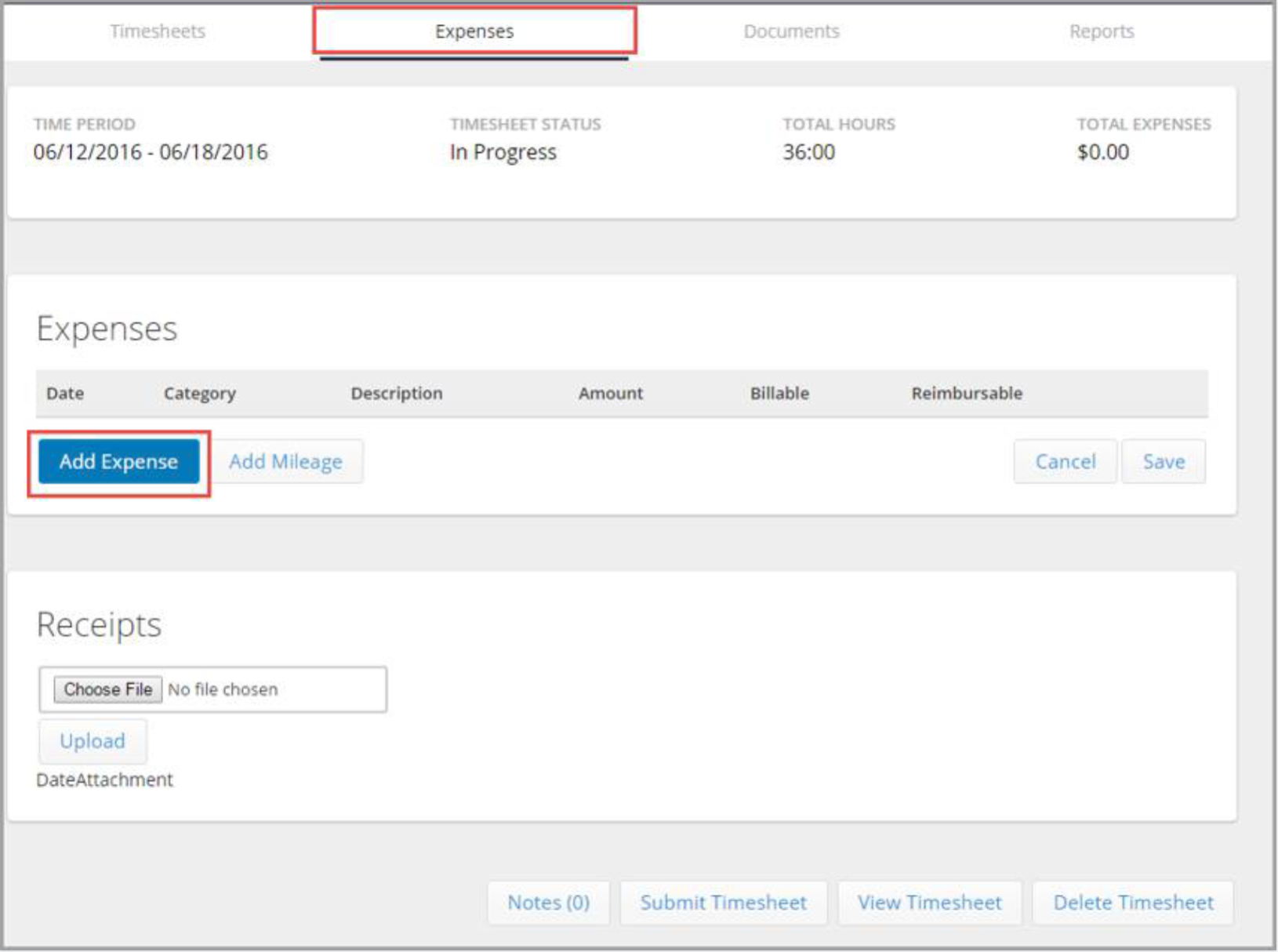
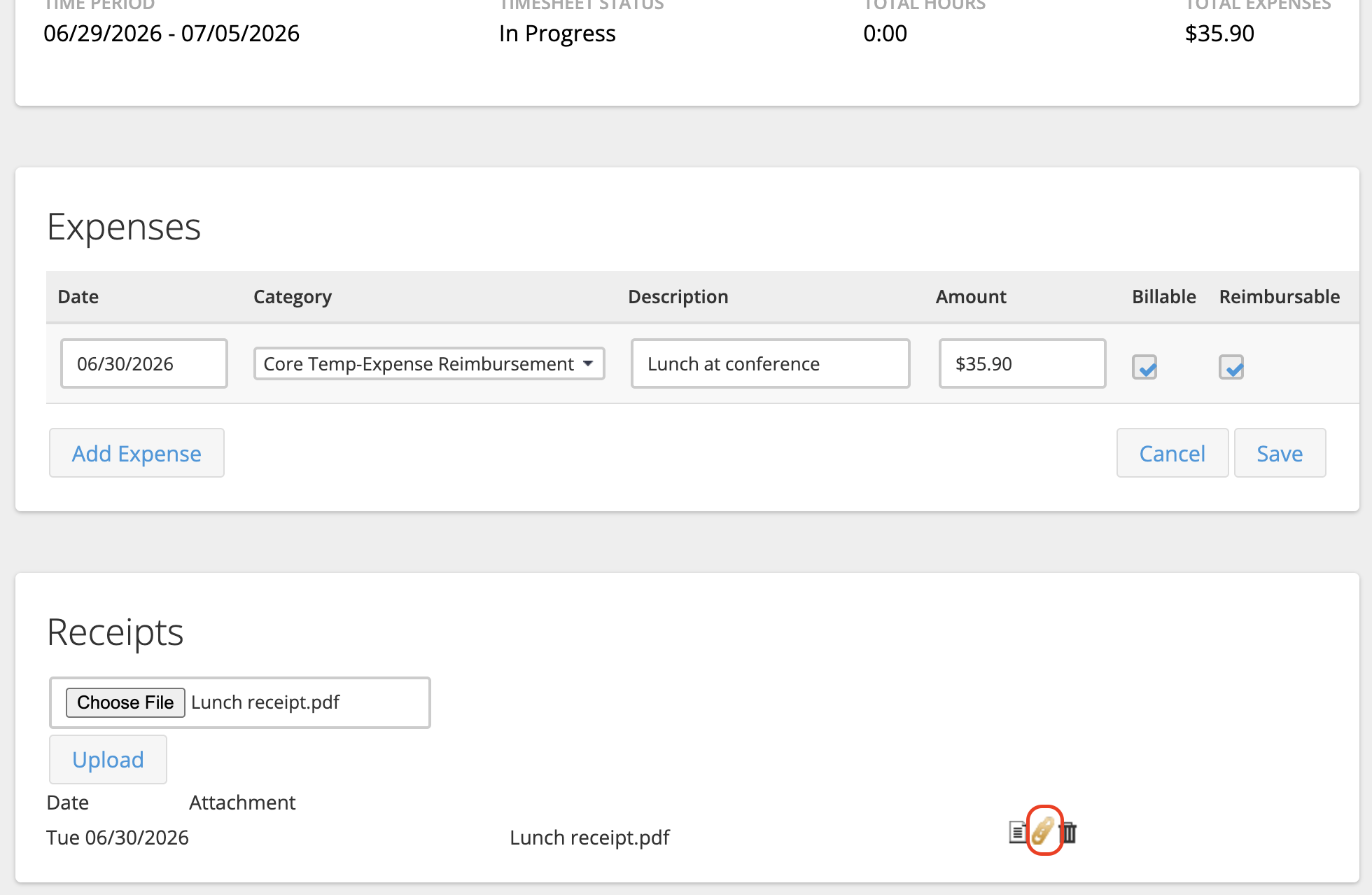
3. Add the details of the expense:
- Date: The date of transaction
- Category: This will always be "Core Temp-Expense Reimbursement."
- Description: Describe the expense.
- Amount: Enter the monetary amount to be expensed
- Billable: This should always be checked.
- Reimbursable: This should always be checked.
4. You can also perform the following optional actions:
- Adding a Note: You can add a note to the individual expense by selecting the Pen and Paper icon on the right. This icon will turn gold once a note has been saved.
- Add More Expenses: Click the Add Expense button to add additional lines of expenses.
- Delete an Expense: Delete an individual line item expense by selecting the Trash Can icon to delete the line.
5. Click Save.
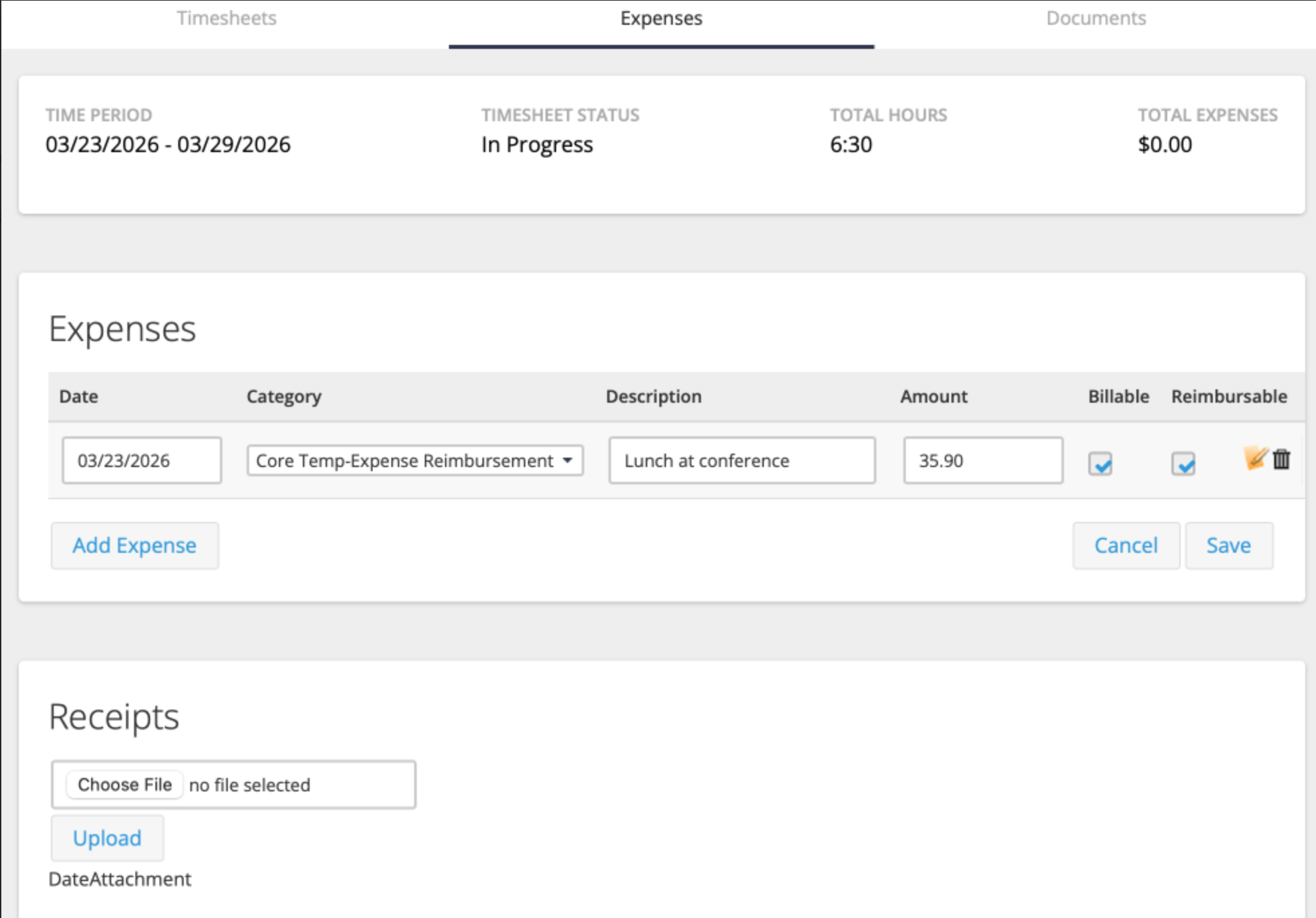
6. Next, attach a receipt in the Receipts section by clicking the Choose File button.
7. Locate your receipt on your desktop and click Open.
8. Click the Upload button.
9. Click OK twice to confirm that the file has been uploaded.
10. Once your receipt(s) have been uploaded, you'll need to attach each one to the appropriate expense. To the right of each receipt, click the paper clip icon, then select the checkbox next to the expense you want to attach the receipt to.
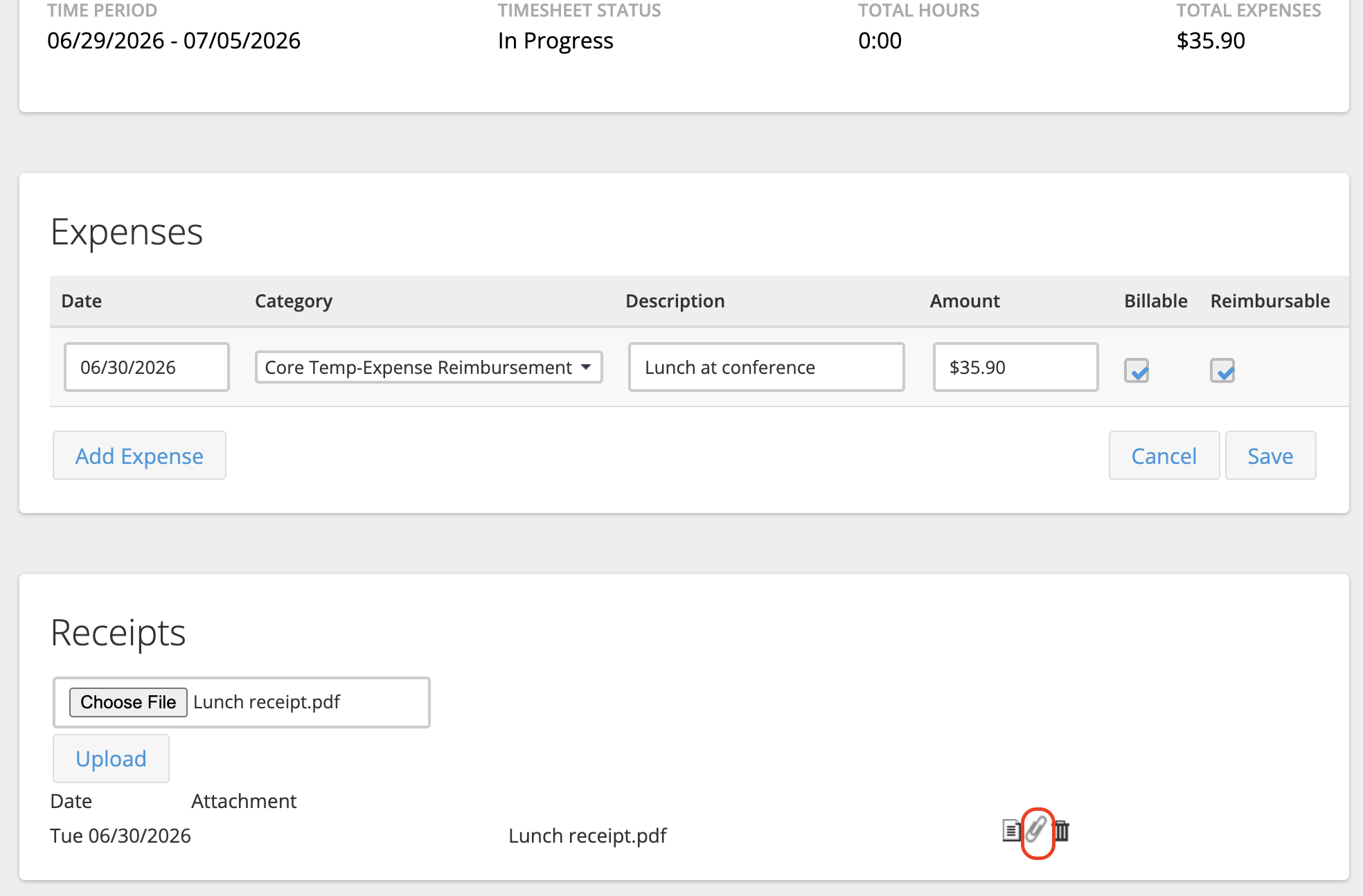
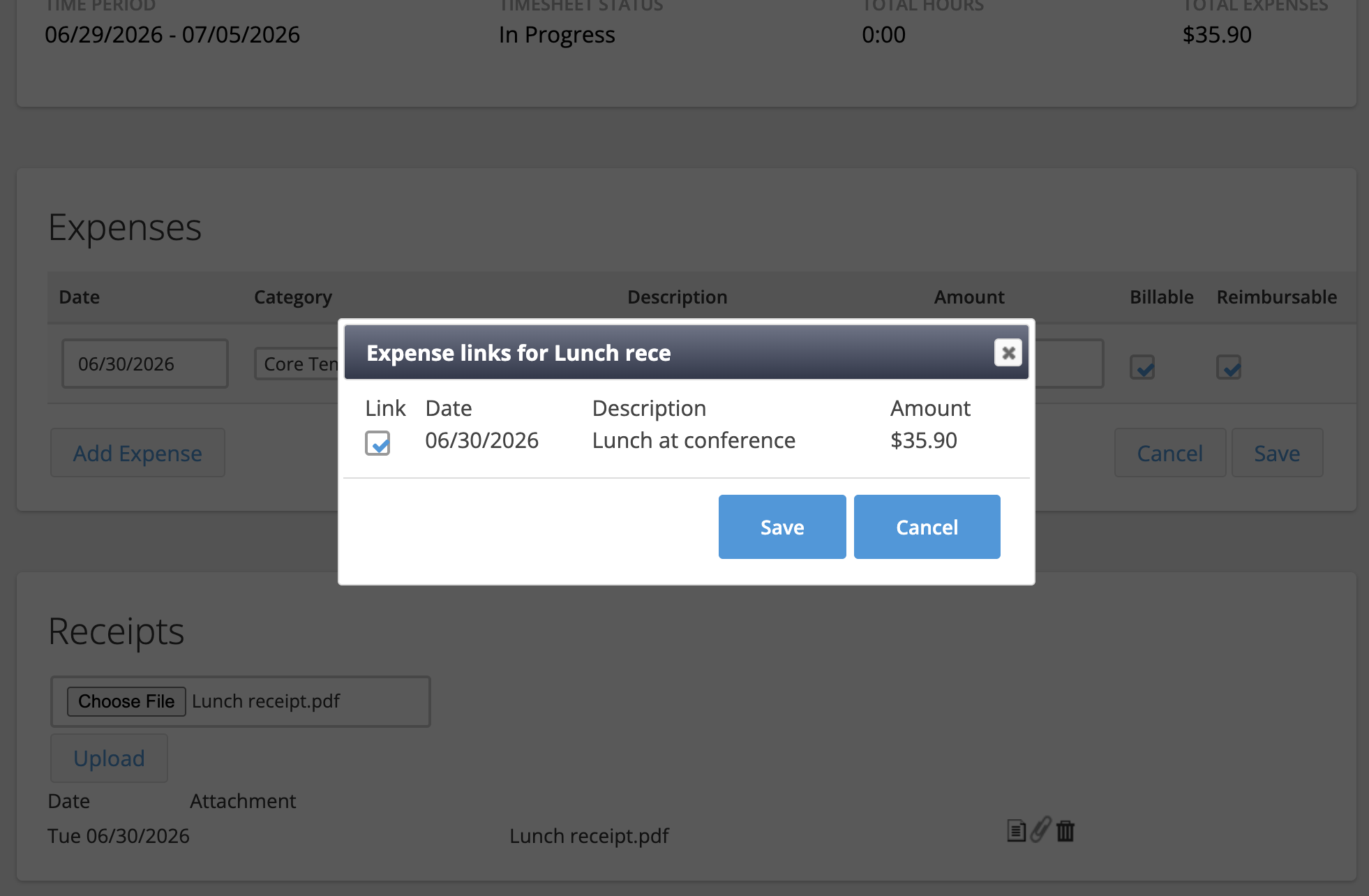
Click Save. Once the receipt has been attached successfully, the paper clip icon will turn gold. Repeat this step for every receipt you have uploaded until all the paper clip icons are gold.
11. Select Submit Timesheet once you are ready to send your entire timesheet, along with your expenses, to your manager.
For any questions or further assistance, please contact your Candidate Success Manager (CSM).